How to Use Assisted Rescoring
Goal
Use deployment context information to enable assisted rescoring in ODG.
You’ll end up with
A component descriptor with a
security.ocm.software/risk-profilelabelAssisted rescoring suggestions in the ODG Dashboard based on your deployment context
Faster and more accurate vulnerability triage with context-aware severity recommendations
Prerequisites
Access to your component’s OCM component descriptor
Understanding of your component’s deployment context (network exposure, authentication, etc.)
ODG instance with assisted rescoring enabled
Steps
1. Identify your deployment context
Determine the security characteristics of your component.
Answer these questions:
Network exposure - How reachable is the component?
Private: Not reachable from outside your private network
Protected: Behind authentication or restricted network
Public: Reachable from the internet
Authentication - Is authentication required for all access?
true: All access requires authentication
false: Anonymous or public access possible
User interaction - Who interacts with the component?
operator: Only operators/administrators
end-user: Arbitrary end users
Data sensitivity - What kind of data does it process?
Confidentiality requirement: none, low, or high
Integrity requirement: none, low, or high
Availability requirement: none, low, or high
Example:
An internal API service:
Network exposure:
private(only accessible within VPC)Authentication:
true(OAuth required)User interaction:
end-user(serves internal users)Confidentiality:
high(processes personal data)Integrity:
high(critical business logic)Availability:
low(can tolerate brief downtime)
2. Add the risk profile label to your component descriptor
Add the security.ocm.software/risk-profile label to your component or resource (see OCM’s Create Component tutorial for details on component descriptors).
For a component-wide risk profile:
component:
  name: github.com/my-org/my-api
  version: 1.2.3

  labels:
    - name: security.ocm.software/risk-profile
      version: v1
      value:
        network_exposure: private
        authentication_enforced: true
        user_interaction: end-user
        confidentiality_requirement: high
        integrity_requirement: high
        availability_requirement: low
        comment: "Internal API service running in private VPC with OAuth authentication"

  resources:
    - name: api-image
      type: ociImage
      ...
For a resource-specific risk profile:
resources:
  - name: api-image
    type: ociImage
    ...
    labels:
      - name: security.ocm.software/risk-profile
        version: v1
        value:
          network_exposure: private
          authentication_enforced: true
          user_interaction: end-user
          confidentiality_requirement: high
          integrity_requirement: high
          availability_requirement: low
          comment: "Backend API with OAuth - internal only"

  - name: frontend-image
    type: ociImage
    ...
    labels:
      - name: security.ocm.software/risk-profile
        version: v1
        value:
          network_exposure: public
          authentication_enforced: false
          user_interaction: end-user
          confidentiality_requirement: low
          integrity_requirement: medium
          availability_requirement: high
          comment: "Public-facing web UI"
Note: Resource-level labels take priority over component-level labels. Use component-level for uniform deployments, resource-level for mixed contexts.
3. Use assisted rescoring in the ODG Dashboard
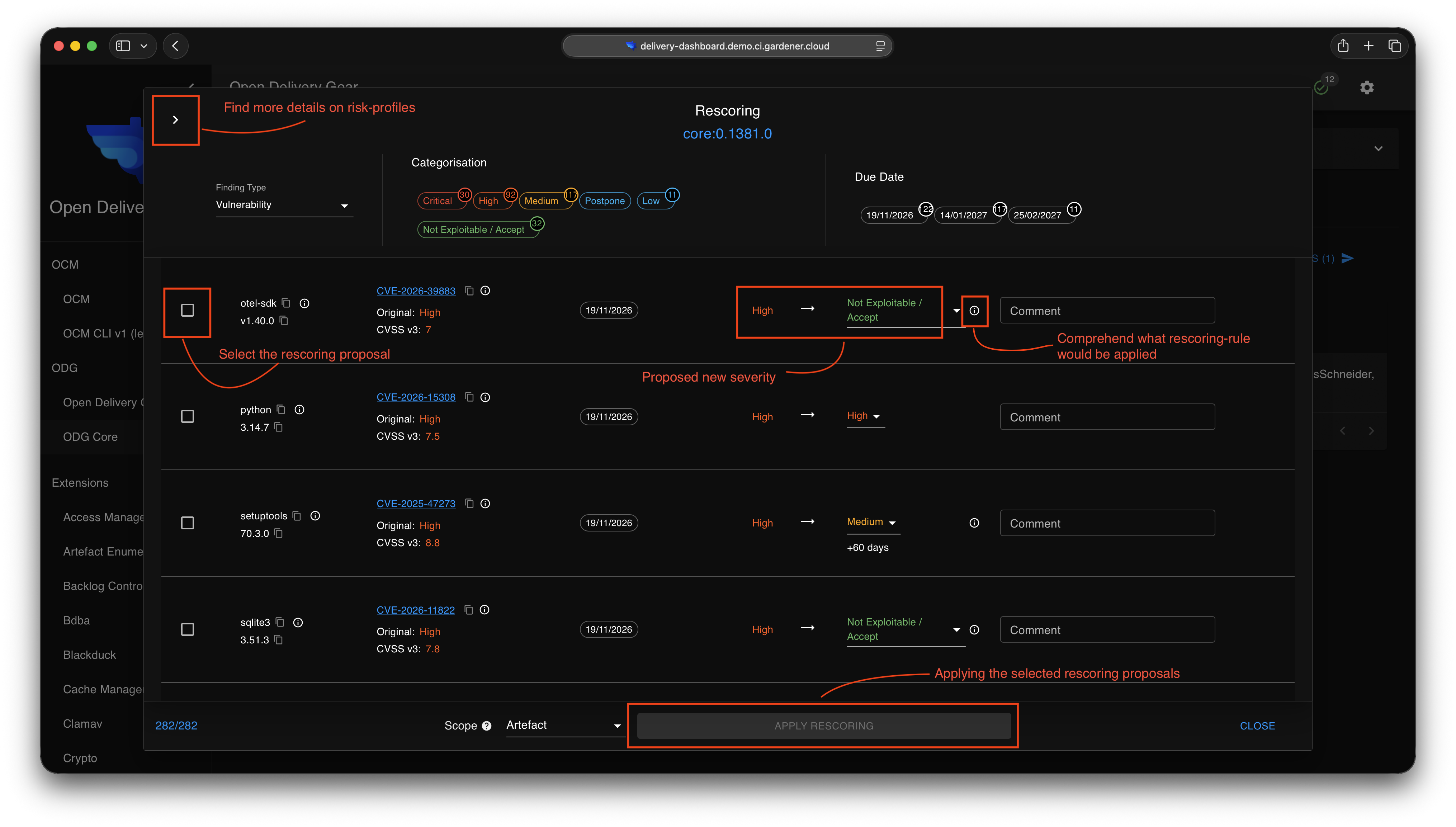
When you open a vulnerability finding, the rescoring UI will automatically include a suggestion if one is available based on your risk profile.
In the ODG Dashboard:
Open a vulnerability finding (via GitHub issue link or ODG dashboard)
Open the rescoring interface
The suggestion is automatically populated if available
The rescoring UI shows:
Suggested severity - Pre-selected based on your deployment context
Matching rule - Which risk profile fields triggered this suggestion
4. Review and apply the suggestion
Review the pre-populated suggestion and apply or modify as needed.
To accept the suggestion:
Review the suggested severity and matching rule
Optionally edit the justification to add specifics
Select the rescoring scope
Click Apply Rescoring
To modify the suggestion:
Change the severity if you disagree
Edit the justification to reflect your decision
Select the rescoring scope
Click Apply Rescoring
Expected result:
The rescoring is applied with your chosen severity
The finding’s effective severity updates
The GitHub issue receives an update comment
The rescoring appears in the audit trail