How to Rescore Findings
Goal
Override the severity assessment of a security or compliance finding when the scanner’s initial rating does not match your actual risk.
You’ll end up with
A rescored finding with updated effective severity
A documented justification explaining the severity change
The finding’s due date automatically adjusted to match the new severity
The corresponding GitHub issue updated or closed to reflect the new effective severity
The rescoring visible in the finding’s audit trail
Prerequisites
Access to the ODG Dashboard
Permission to rescore findings in your organisation
The direct ODG Dashboard finding URL
Steps
Use the ODG Dashboard to rescore findings interactively.
1. Open the finding in the ODG Dashboard
Navigate to the finding you want to rescore.
In the ODG Dashboard:
Open the finding either:
Via direct link from the GitHub compliance issue (e.g., example ODG Dashboard link)
Via manual navigation through the ODG Dashboard
Tip: GitHub compliance issues automatically include direct ODG Dashboard links in the issue description.
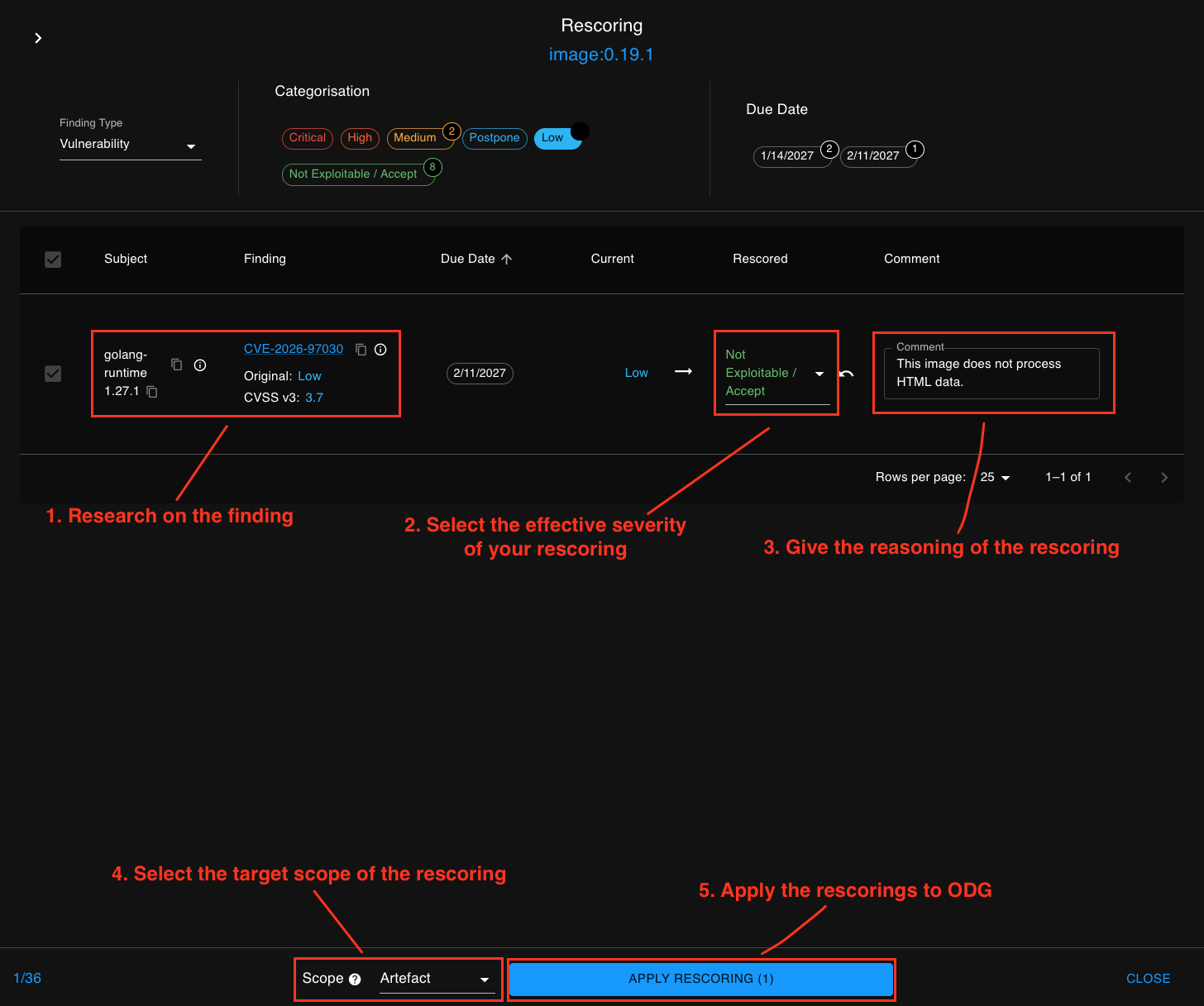
2. Research the finding and prepare your rescoring
Investigate the finding to determine the appropriate severity.
Research steps:
Review the finding details (CVE description, affected package, scanner severity)
Consider your deployment context
Assess exploitability in your environment
Determine the appropriate new severity
Draft a justification explaining your assessment
3. Select rescored severity and input rescoring text
Set the new severity and provide your justification.
In the rescoring form:
Click the Severity dropdown
Select the new severity
In the Comment field, paste your justification text
4. Select the rescoring scope
Choose how broadly this rescoring should apply.
In the rescoring form:
Click the Scope dropdown
Select the appropriate scope:
Single - Applies to the specific artefact version
Artefact - Applies to all versions of this artefact (recommended)
Component - Applies to all artefacts in the component
Global - Applies everywhere this finding appears (requires administrator approval)
Recommendation: Use Artefact scope in most cases, as deployment context and finding rescorings typically remain consistent across artefact updates. Only use Single scope when the rescoring is specific to a particular version.
5. Apply the rescoring
Submit the rescoring and verify it was applied.
In the rescoring form:
Review your selections:
New severity
Justification text
Scope
Click Apply Rescoring or Submit
Wait for the confirmation message
Expected result:
A success message appears
The finding’s effective severity badge updates immediately
The due date is recalculated based on the new severity
The GitHub issue (if configured) receives an update comment
A rescoring record appears in the finding’s audit trail